Kiln supervisor workflow
This guide is for kiln supervisors on Rainbow distributed projects. Supervisors review synchronized field records and create the batch-sampling and bulk-density records used to verify production-batch quality.
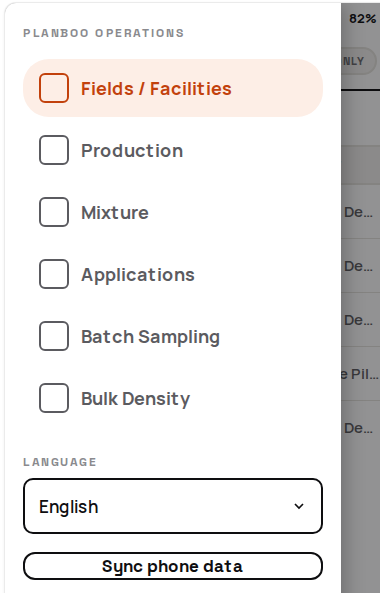
Supervisors can view Fields / Facilities, Production, Mixture, and Applications. They directly record Batch Sampling and Bulk Density.
Before you begin
Complete Install, sign in, and prepare. Confirm that the correct production batch and contributing sites are available and that field operators have synchronized the records you need to inspect.
Rainbow sampling terms
| Term | Meaning in this guide |
|---|---|
| Site | The production location where kiln runs occur. |
| Production batch | Biochar produced under the same conditions, for up to six months or 200 tonnes of biochar, whichever comes first. |
| Bulk density | Dry biochar mass per unit volume, used to convert a volume measurement into dry mass. |
| Site composite pile | Biochar sub-samples accumulated at one site across a production batch. |
| Site composite sample | A representative sample taken after thoroughly mixing a site's composite pile. |
| Production-batch composite pile | The combined and mixed site composite samples from every site contributing to the production batch. |
| Production-batch representative sample | The final sample taken from the production-batch composite pile and sent to an accredited laboratory. |
1. Record bulk density
Use this workflow where the project measures biochar by volume. The source training manual requires:
- at least one measurement each year for every site, using the site's composite pile, unless the biomass feedstock changes; and
- at least one measurement per kiln where the volume-based approach is used.
Open ≡ → Bulk Density. The list separates Finished and Ongoing records. Select New bulk density.
Site and sample
- Select the Site ID. Biomass type fills automatically.
- Enter the sample date.
- Take a sample photo.
- Select the standard container type. Quantity is one.
- Confirm the automatically supplied biochar volume and correct it only when the actual standard-container volume differs.
- Photograph the fresh sample on the scale with the measured mass visible.
- Enter the initial mass in kilograms.
Determine dry mass
Choose the approved method:
- Oven Drying: photograph the oven at 110°C or higher when drying starts. After 48 hours, photograph the biochar on the scale with the final mass visible and enter the dry mass.
- Moisture Analyzer: photograph the analyzer with its result visible and enter the moisture reading. The app calculates dry mass from the initial mass and reading.
A handheld moisture sensor is not the instrument specified for this dry-mass measurement.
The app calculates moisture content and bulk density from the recorded volume and dry mass.

Review the record carefully before saving. Submitted bulk-density records cannot be edited in the app.
2. Record batch sampling
Create one batch-sampling record after the site composite samples from every contributing site have been combined and mixed into the production-batch composite pile.
Open ≡ → Batch Sampling, then select New batch sample.
- Select the production batch.
- Take a photo of the site composite samples being brought together.
- Take a photo showing the production-batch composite pile being mixed.
- Take a photo showing the representative sample being collected from the mixed pile.
- Review and save the batch sample.
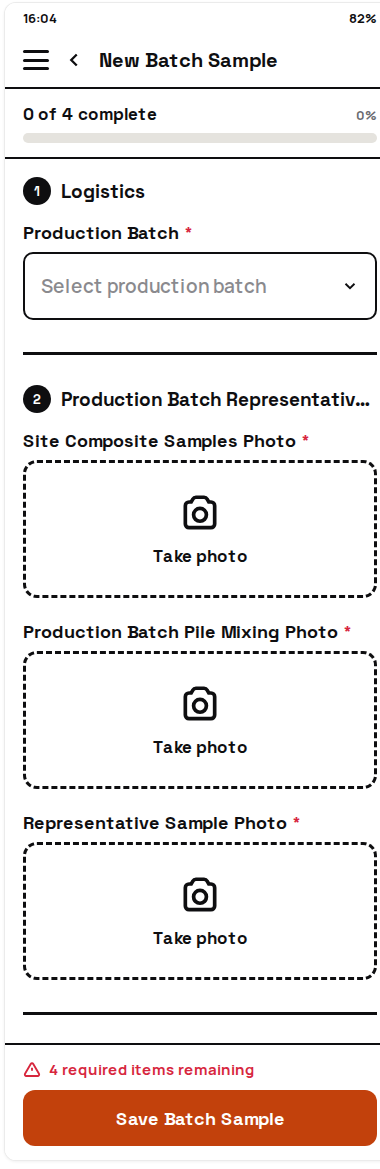
Submitted batch samples cannot be edited. An unfinished sample remains in Ongoing, where it can be completed or deleted as a draft.
3. Review fields and facilities
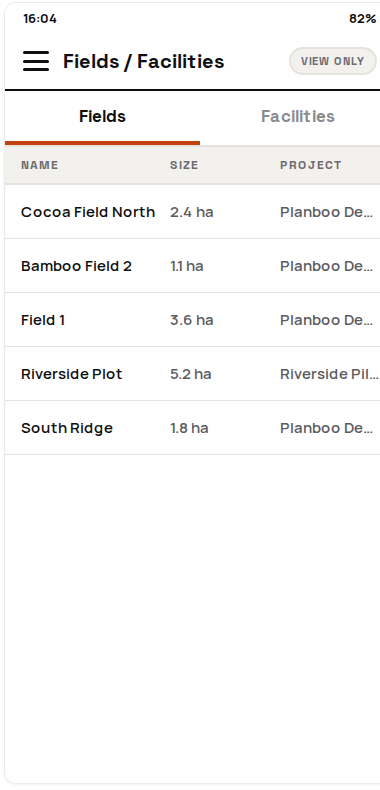
Open ≡ → Fields / Facilities. Switch between the Fields and Facilities tabs. Supervisor access is view-only and lists finished, synchronized records.
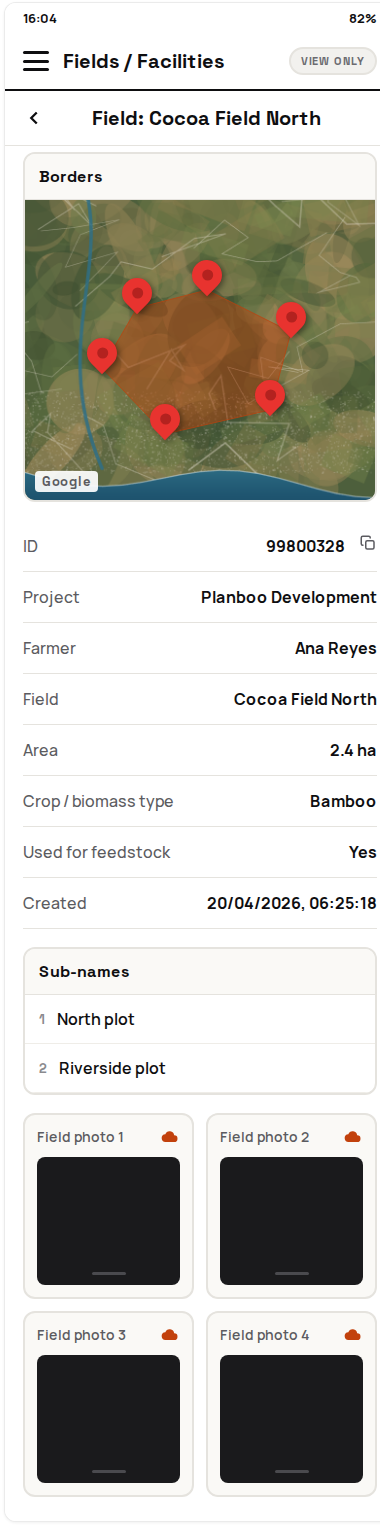
Select a record to inspect its project, farmer, area, crop or biomass type, boundary map, and photos. Record the unique ID when reporting a discrepancy so the project team can identify the exact entry.
4. Review production
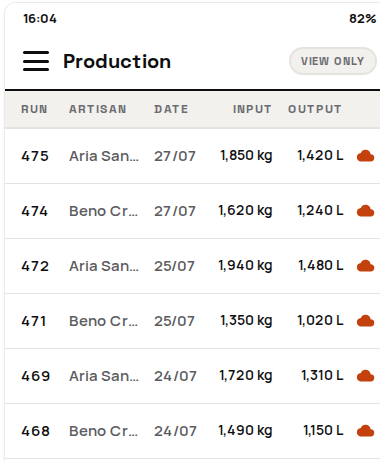
Open ≡ → Production to inspect finished, synchronized kiln runs. Select a run to review its unique ID, biomass input, biochar output, moisture readings, and pyrolysis and quenching evidence.

5. Review mixtures
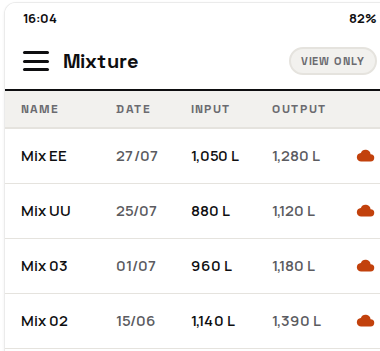
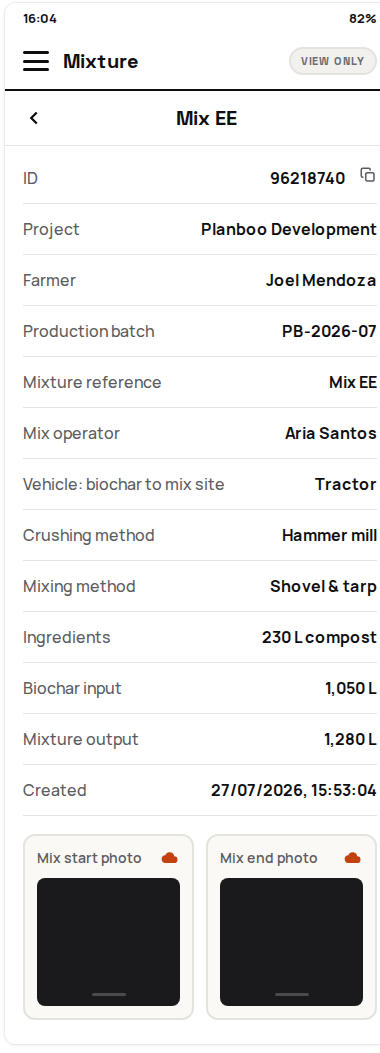
Open ≡ → Mixture. Select a row to inspect the mixture ID, production batch, operator, transport, crushing and mixing methods, ingredients, volumes, and evidence photos.
6. Review applications
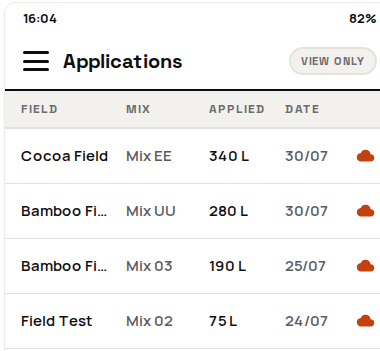
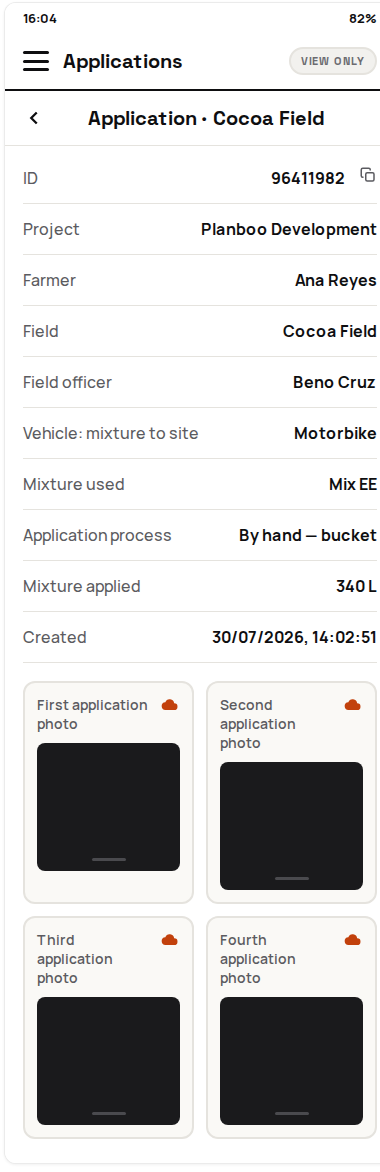
Open ≡ → Applications. Select a row to inspect the application ID, project, farmer, field, field officer, vehicle, mixture, method, applied quantity, and evidence photos.
Confirm success
Confirm that the required bulk-density and batch-sampling records appear in Finished. If an expected operational record is missing, ask the field operator to check their phone and synchronization state before anyone recreates the record.
For unresolved permission, GPS, display, missing-record, or synchronization problems, follow Troubleshooting.