Install, sign in, and prepare
This guide covers the steps shared by Artisanal operators, Rainbow kiln operators, and Rainbow kiln supervisors.
Install the Android app
Use one of the approved installation methods:
- Scan the QR code below on the Android phone.
- Ask a Planboo team member for an installation invitation using the Google Play email associated with the phone.
- Open Google Play, search for Planboo, and install the Planboo Biochar application.

Use an installation method approved by your project. Do not install an APK or application package received from an unknown sender.
Sign in
- Open the Planboo app.
- Enter the email and password provided for your user account.
- Select Log in while the phone has a reliable connection.
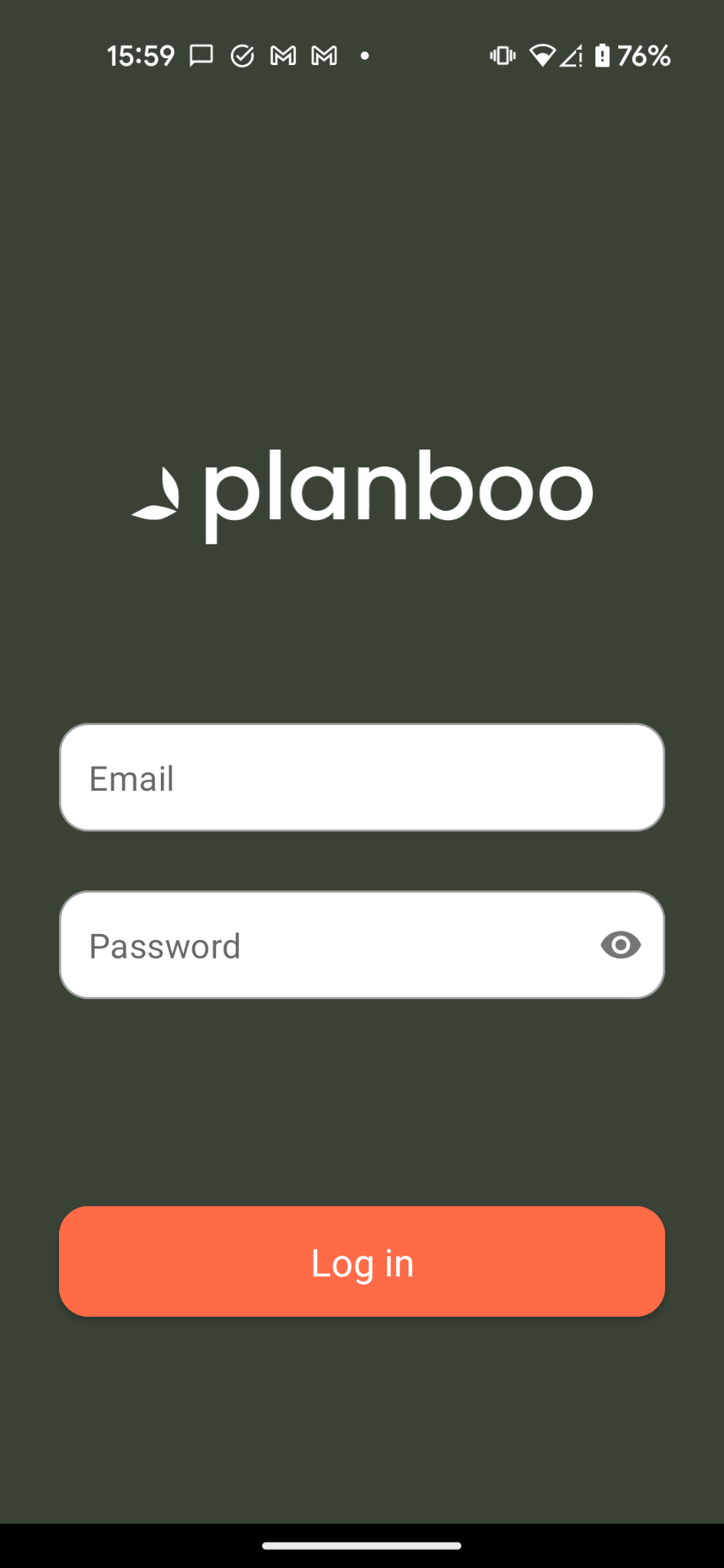
Loading and signing in before leaving connectivity helps the app download the project information required for offline field work.
Grant phone permissions
When Android asks for access:
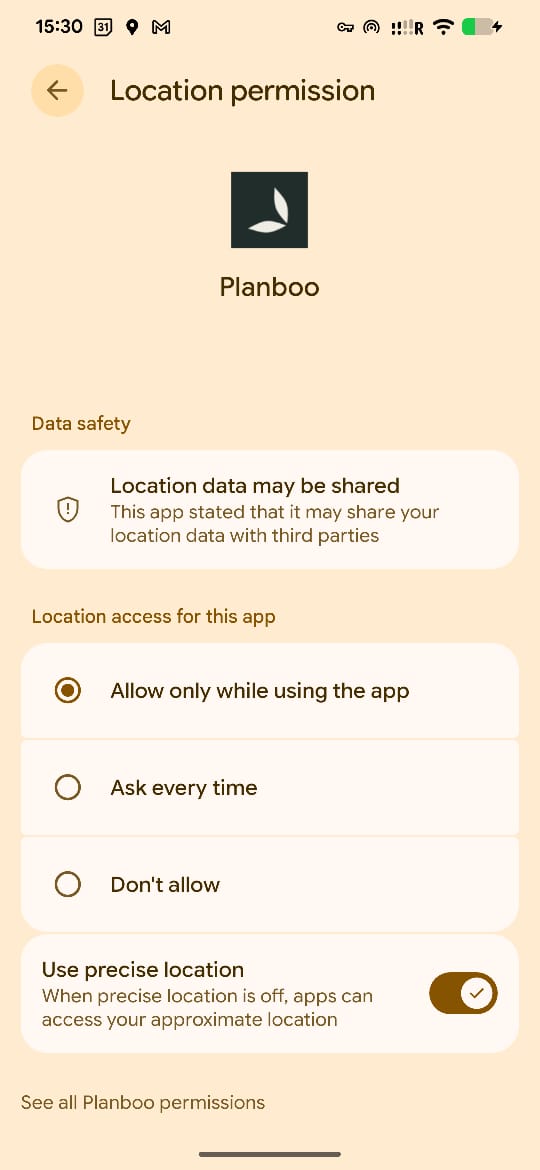
- allow location access while using the app;
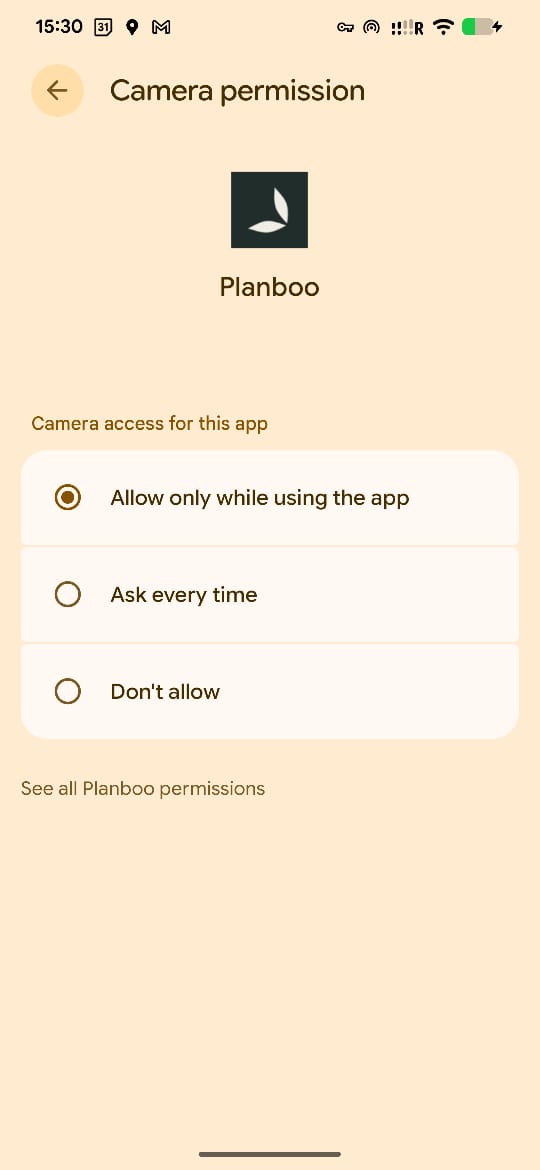
- allow camera access while using the app;
- enable precise location where the workflow requires field or facility coordinates.
Open the navigation menu
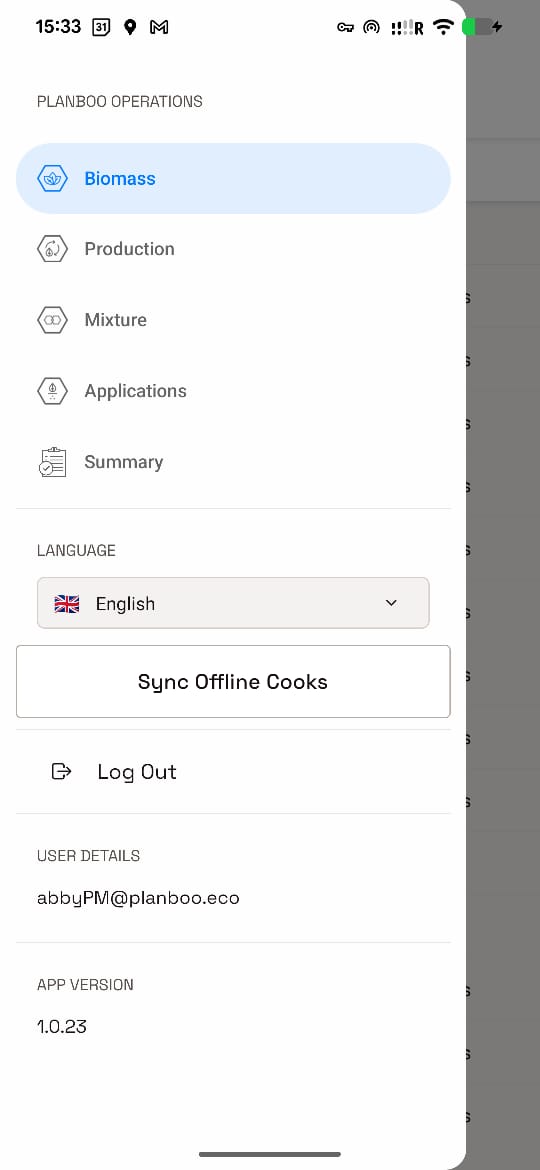
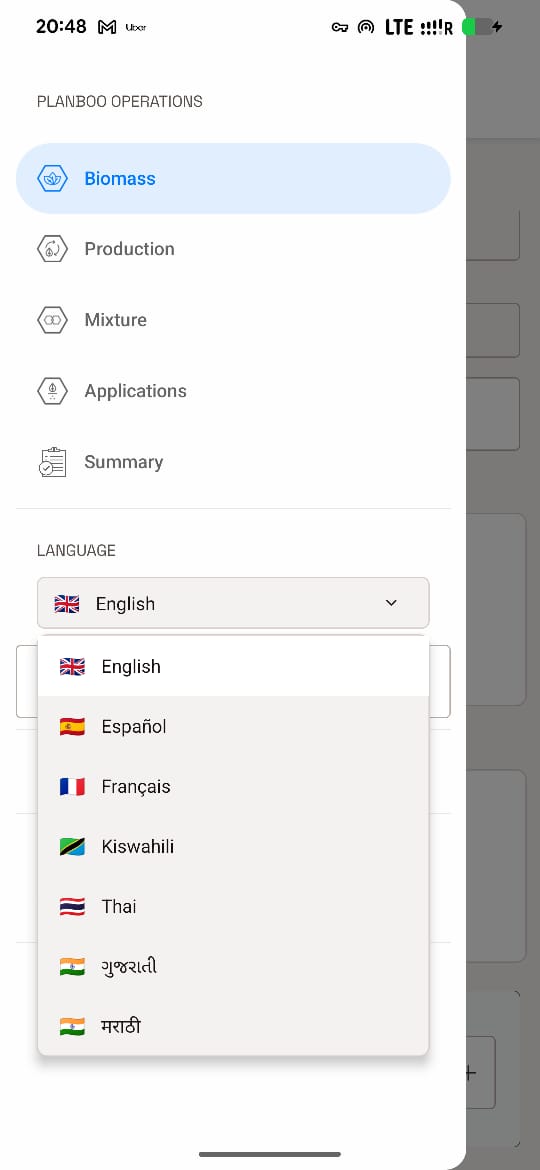
Select the ≡ icon at the top left to open the navigation drawer. Use the language list to choose the working language. The available sections vary by role and project.
Before leaving connectivity
- Sign in and confirm that the correct project and role-specific menu are available.
- Confirm the required records and reference data have loaded.
- Check that the phone has sufficient storage and battery.
- Confirm that camera and location permissions work.
- Open the guide for your assigned workflow before travelling to the site.
During field work
- Keep records associated with the correct project and activity.
- Capture evidence as part of the relevant workflow.
- Treat locally saved and remotely submitted records as different states.
- Do not delete local work merely because it is not yet visible in MRVin Monitor.
- Do not log out while records or photos are waiting to upload.
After field work
Reconnect, allow synchronization to complete, and confirm important records in MRVin Monitor before considering the work fully submitted.
Log out safely
Open the navigation drawer and select Log out only when another user needs to use the phone. If you are the only user, remain signed in so the app is ready for the next field session.
Never log out while a record or photo is waiting to upload. First reconnect, synchronize, and confirm that the pending phone icons have changed to cloud icons. Logging out with local work still pending can cause that work to be lost.
Continue with the Artisanal operator, kiln operator, or kiln supervisor guide.